Stream Deck Templates for T2G DOM & Jigsaw DOM
Control your T2G DOM workflow faster with a physical Stream Deck layout designed for execution, risk control, PnL display, quantity presets and order management.
Why use a Stream Deck for trading?
A Stream Deck is not about "clicking faster". It's about standardising your critical actions, reducing execution errors and keeping your attention on price and order flow.
FLAT, CANC, PnL toggle, OCO — one physical key press, no hunting through menus.
Dedicated keys with clear icons. Less hesitation, fewer misclicks in fast markets.
One key = one intention. Your focus stays on the market, not your keyboard.
Instant actions for safety, execution and cleanup — no workflow interruption.
Standardised execution → less impulsivity. Your routine becomes an edge.
T2G DOM Stream Deck Profile
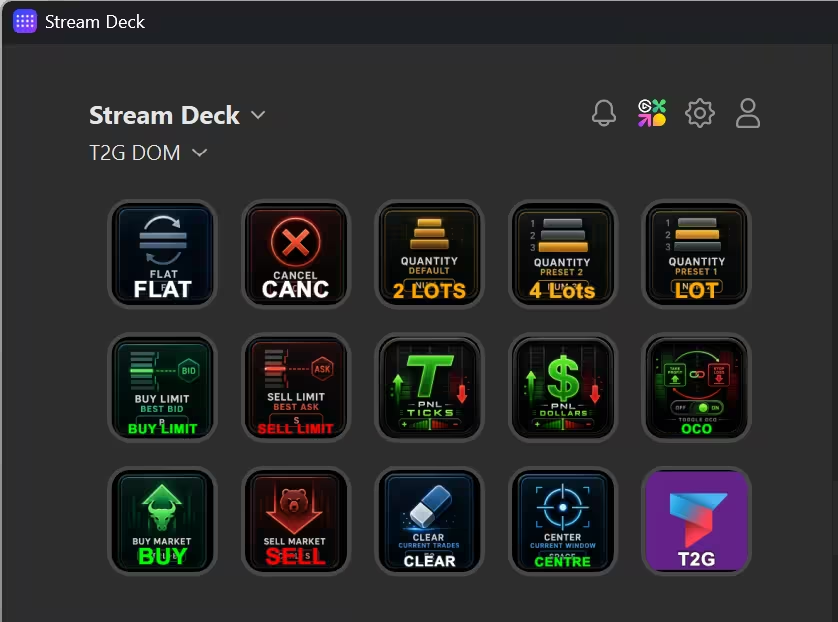
Built for Bookmap + T2G DOM. Covers execution, PnL display switching, quantity presets, OCO mode and DOM management in a single 15-key layout.
Flatten position (critical safety)
Flatten position + cancel all pending orders in a single key press. The most critical action in the profile.
Emergency exit / protection
- • Most critical action in session
- • Exit + cancel simultaneously
- • Reduces impact of execution errors
Cancel pending orders
Cancel pending orders without exiting the current position. Clean the DOM before any repositioning decision.
Clean the DOM before repositioning
- • Clean repositioning
- • No ghost orders left on the book
- • Essential before any order change
Recommended hardware for the T2G DOM profile
For the T2G DOM Stream Deck profile, the Stream Deck MK.2 is the recommended choice because the 15-key layout matches the template shown on this page.
The 15-key layout gives enough room for execution, risk control, PnL mode switching, quantity presets and OCO control.
Minimal setup • 6 keys
Advanced • 32 keys
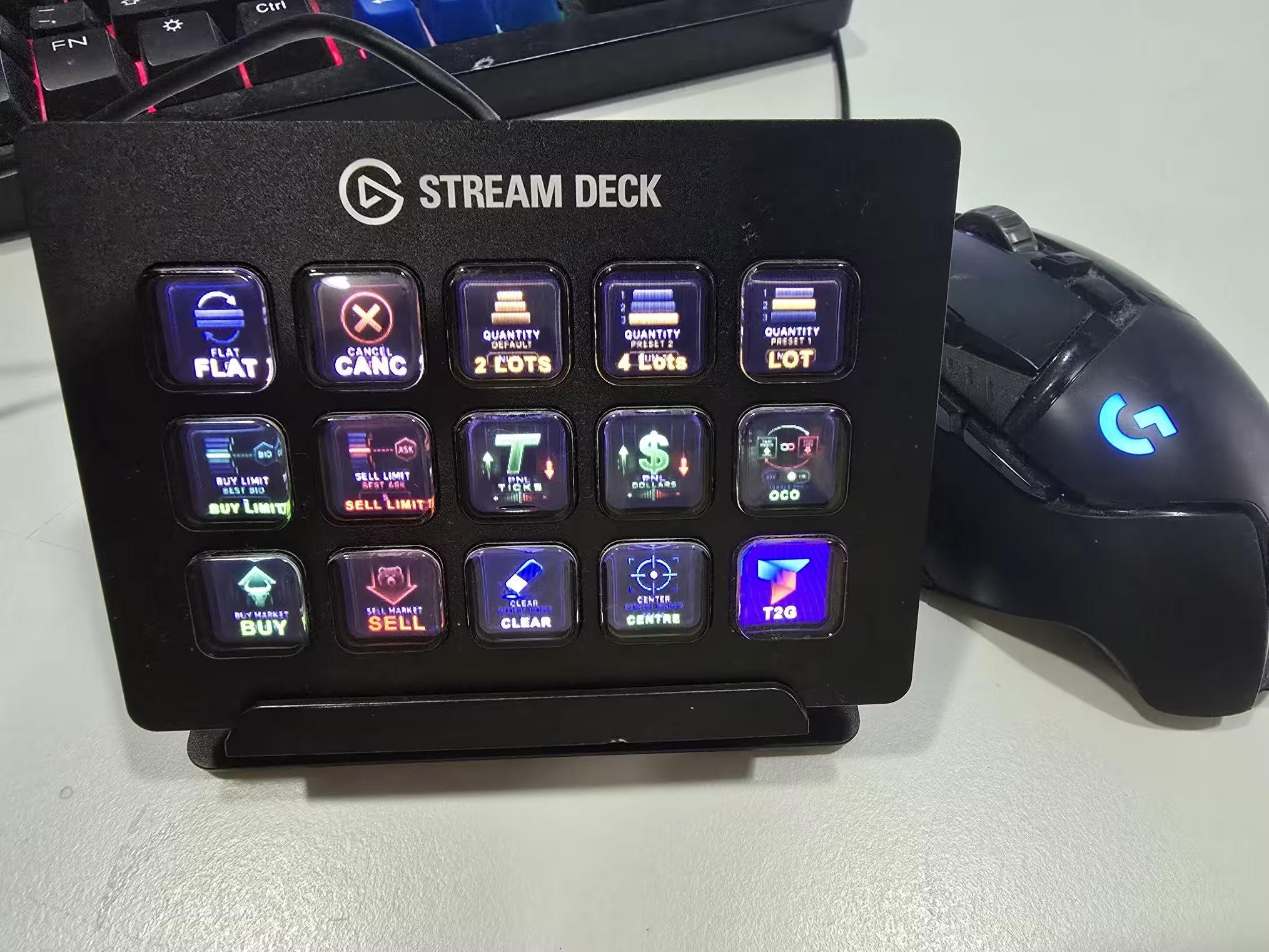
| Key | Action | Shortcut | When to use |
|---|---|---|---|
| FLAT | Flatten position + cancel pending orders | — | Emergency exit / protection |
| CANC | Cancel pending orders | — | Clean the DOM before repositioning |
| Quantity Default | Set default quantity preset | — | Return to your base risk size |
| Quantity Preset 1 | Set quantity preset 1 | — | Fast size switch |
| Quantity Preset 2 | Set quantity preset 2 | — | Fast size switch |
| Buy Limit Best Bid | Place buy limit at best bid | — | Passive long entry |
| Sell Limit Best Ask | Place sell limit at best ask | — | Passive short entry |
| Buy Market | Send market buy | — | Immediate long execution |
| Sell Market | Send market sell | — | Immediate short execution |
| PnL Ticks | Switch PnL display to ticks | Ctrl+Alt+T | Read performance in market structure units |
| PnL $ | Switch PnL display to dollars | Ctrl+Alt+D | Read performance in money value |
| Toggle OCO | Enable / disable OCO mode | Ctrl+Alt+O | Manage bracket behavior intentionally |
| Clear Current Trades | Clear current trades display | F2 | Reset the visual read |
| Center Current Window | Center current DOM window | Space | Recenter after a market move |
You can rename keys and change icons in the Stream Deck software to match your style and your T2G DOM shortcut settings.
- • Download the ZIP file above.
- • In Elgato Stream Deck software: import the Trading2gether profile.
- • Verify you are on the correct profile.
- • In Bookmap, open T2G DOM Settings > Shortcuts.
- • Ensure shortcut keys match the Stream Deck profile.
- • PnL Ticks → Ctrl+Alt+T
- • PnL $ → Ctrl+Alt+D
- • Toggle OCO → Ctrl+Alt+O
- • Other execution actions per your T2G DOM shortcut settings.
- • Test every key before going live.
- • Verify each action triggers in T2G DOM as expected.
- • Never skip the simulation test.
The active Bookmap / T2G DOM window must receive the shortcut focus for keyboard shortcuts to work. Always test your setup in replay or simulation first before using it in a live session.
Jigsaw DOM Stream Deck Template
The original Trading2gether template, built for Jigsaw DOM traders. Covers safety (FLAT/CANC), execution (Limit Bid/Ask, Market), size presets and DOM maintenance.
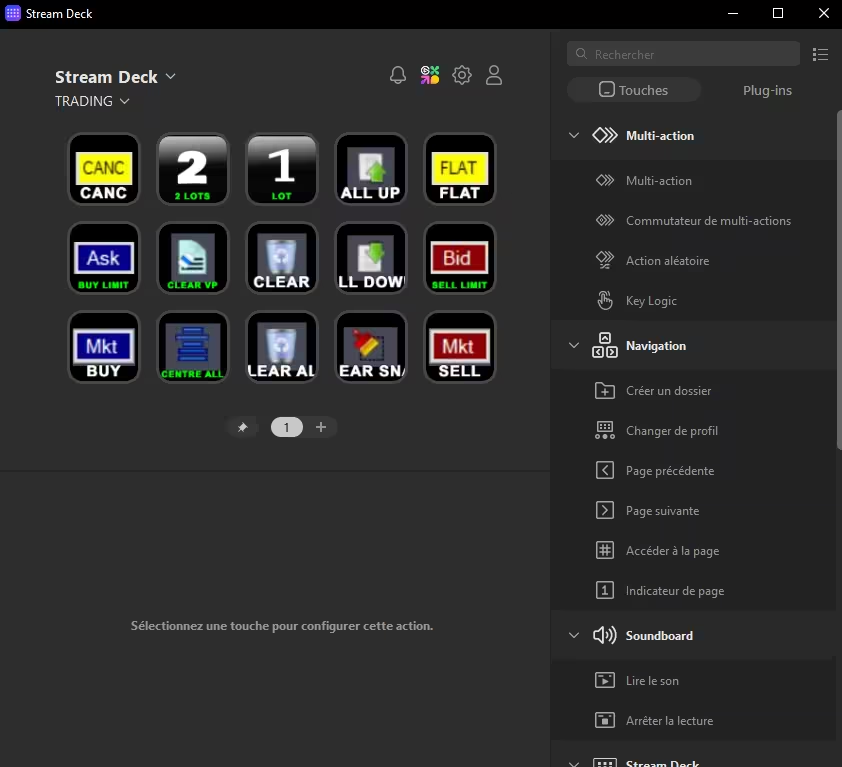
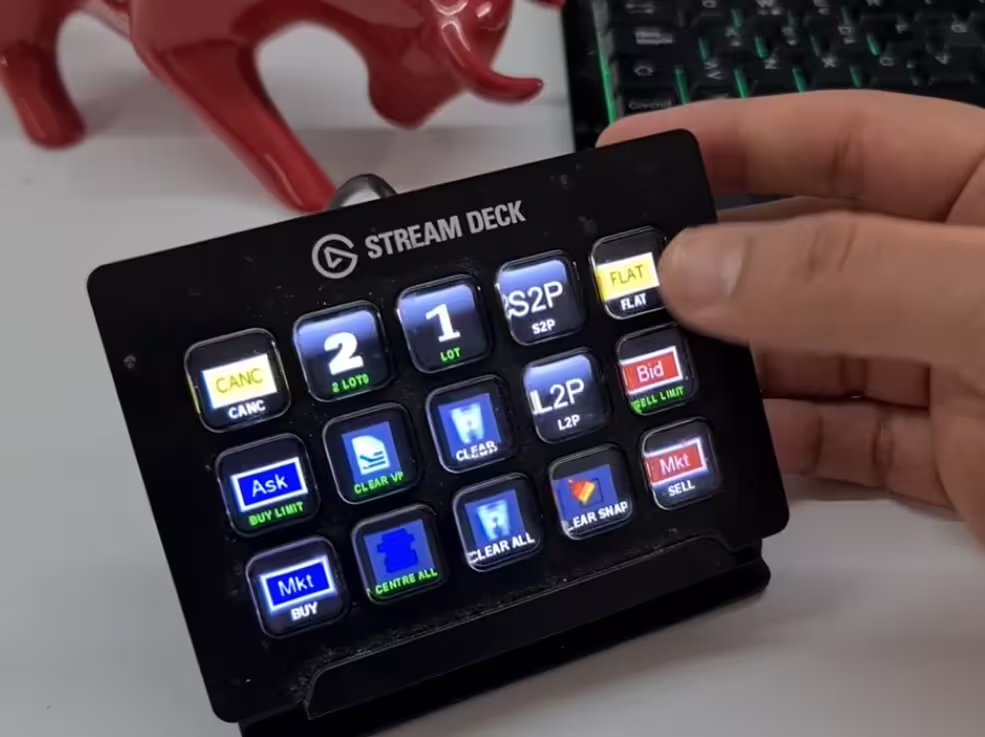
Jigsaw DOM button reference +
| Key | Action | When to use |
|---|---|---|
| FLAT | Market exit + cancel all pending orders | Emergency / immediate protection |
| CANC | Cancel pending orders | Clean before repositioning |
| Ask (Buy Limit) | Buy limit at best Ask | Avoid slippage in volatility |
| Bid (Sell Limit) | Sell limit at best Bid | Clean entries / exits |
| Mkt BUY | Market buy | Immediate execution |
| Mkt SELL | Market sell | Immediate exit / reversal |
| 1 LOT / 2 LOTS | Size presets | Standardise risk |
| ALL UP / ALL DOWN | Grouped adjustment (hotkeys) | Quickly adapt stops/targets |
| CLEAR VP | Clear VP column | Return to a clean DOM read |
| CLEAR / CLEAR ALL | Partial / full clear | Clean reset |
| CENTRE ALL | Centre all DOMs | Instant re-centre after fast move |
- 1. Download the ZIP and import the profile in Elgato Stream Deck software.
- 2. Open Jigsaw > keyboard shortcuts configuration.
- 3. Match each action (Flat, Cancel, Buy Limit…) exactly to the Stream Deck keys.
- 4. Test one action at a time with the DOM window active.
5 most common issues
If a key doesn't respond, check these points in order.
1 DOM window not focused +
Click inside the DOM / T2G DOM window then try again. This is the #1 cause.
2 Mismatched shortcuts +
Bookmap/T2G DOM and Stream Deck shortcuts must be identical.
3 Shortcut conflict +
Another app is capturing the combination (capture tool, overlay, etc.).
4 Wrong profile active +
Check you are on the correct profile in Elgato Stream Deck software.
5 AZERTY / QWERTY keyboard +
Some keys differ between layouts — re-map hotkeys in T2G DOM / Jigsaw accordingly.
These templates are provided for educational and ergonomic purposes only. They do not constitute financial advice or any promise of results. Performance depends solely on discipline, risk management and adherence to your own trading structure.
Want this level of execution in every session?
Join the Trading2gether programme and master DOM reading + clean execution.
Discover the programme →© Trading2gether — Personal use only. Redistribution not authorised.